Access Tokens
System to system API access (service account users only)
|
|
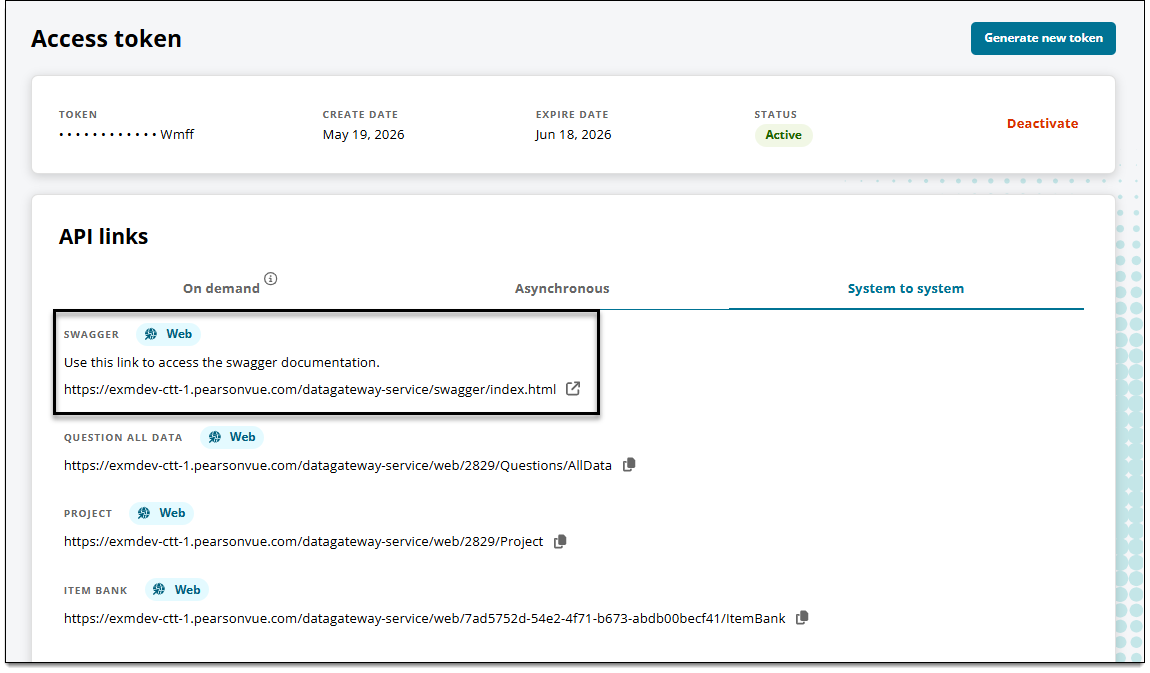
View API documentation
- Upon logging in to ExamDeveloper, you'll be taken to the Access token page.
- Click the link at the top of the API links section to open Swagger documentation.
 If you have only service account permissions, you will not see any tabs in the API links section (On demand, Asynchronous, and System to system tabs are not shown).
Generate a new token
|
However, you must generate a new token every 90 days regardless of your current token's expiration date or status. |
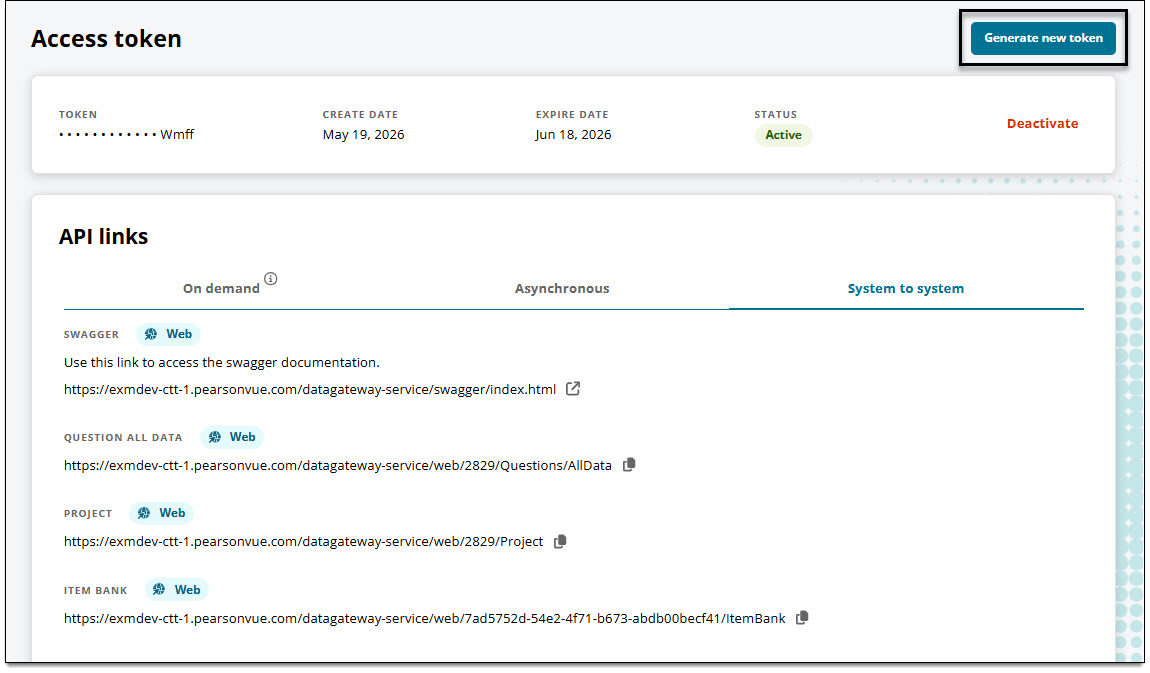
- Click Generate new token in the upper-right corner of the Access token page.
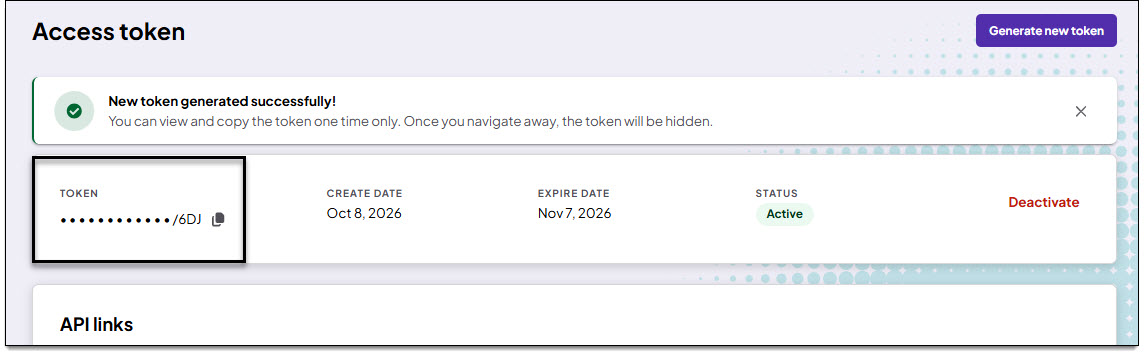
- A success message is shown at the top of the page and the token is displayed in the Access token section.
Copy the access token
|
|
- The token is shown at the top of the Access token page. When you are ready to use the token, click
 next to the token.
- Follow the steps on this page for information about connecting OData in Microsoft Excel.
Deactivate your current token
|
|
- From the Access Token page, click Deactivate.

- The token status will now show as "Deactivated".
- If you attempt to refresh the data in your external report or dashboard, you will get an error. You must generate a new token before you can refresh the data again.